Bring Your Own Cloud Account: Deploy to Your AWS, Azure, or Google Cloud with NEXUS AI
Bring Your Own Cloud Account: Deploy to Your AWS, Azure, or Google Cloud with NEXUS AI
By Platform Super Admin • • Cloud Deployment · Security · AWS · Azure · Google Cloud
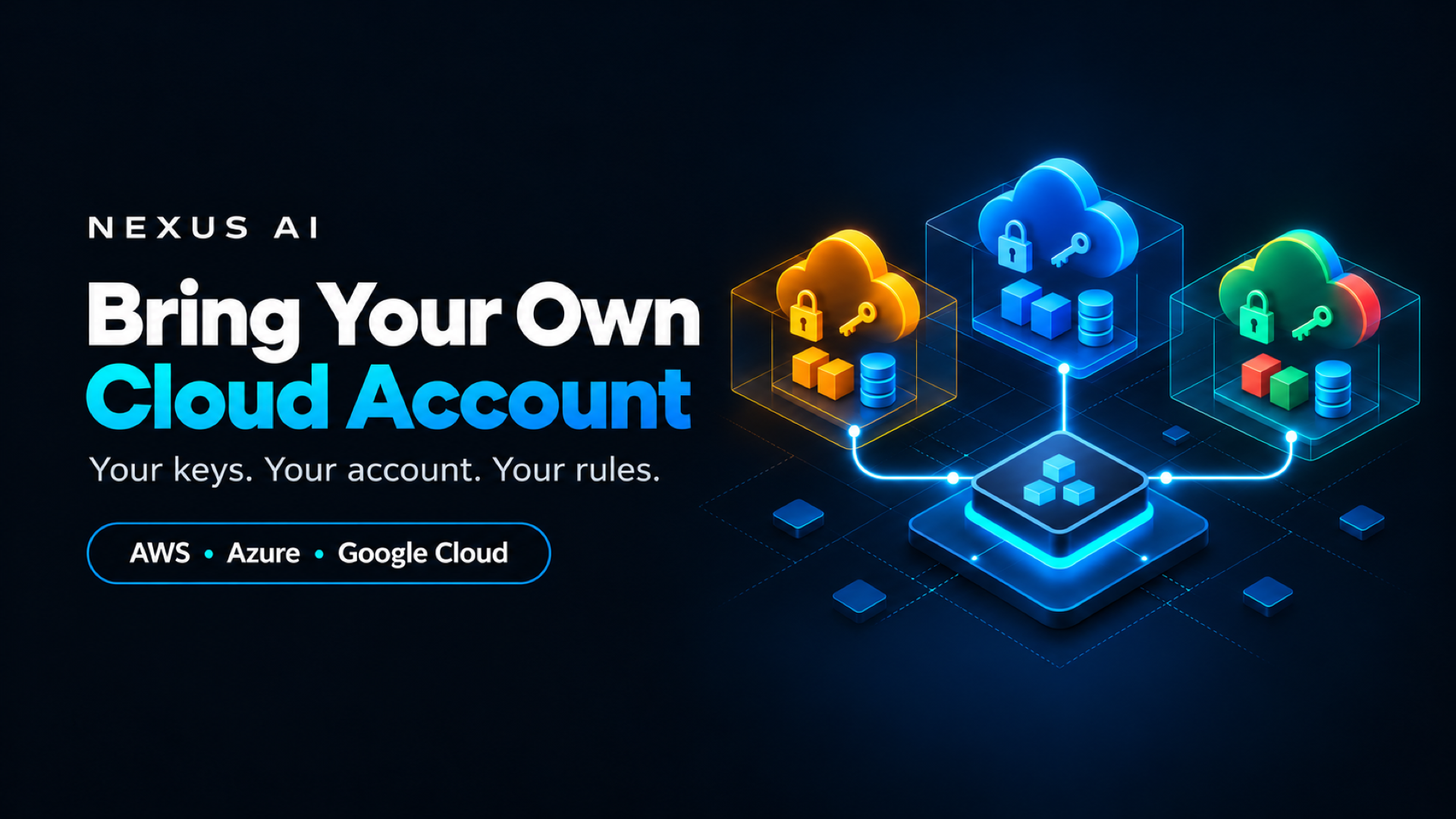
Your security team asks a simple question about the new app: "Which AWS account is it running in?"
If the answer is "the platform's account", the next questions get harder. Who can see the logs? Where does the database live? Whose bill does it appear on? Can we apply our own guardrails, tags, and audit trail?
NEXUS AI lets you answer with "ours". You add your own cloud credentials as a deployment provider, and NEXUS AI builds and runs your apps and managed databases inside your AWS account, Azure subscription, or Google Cloud project. You keep the NEXUS AI workflow (dashboard, CLI, MCP, and AI Builder), and the resources stay in an account you control.
This guide explains how it works, what each provider needs, what NEXUS AI creates in your account, and what to watch for when you rotate or remove keys.
What does "bring your own cloud account" mean?
Bring your own cloud account (sometimes called bring your own key, or BYOK) means the platform acts on cloud resources using credentials you supply, in an account you own.
On NEXUS AI it changes where your resources live, not how you deploy:
| Platform account (default) | Your own cloud account | |
|---|---|---|
| Where the app runs | A NEXUS AI-managed cloud account | Your AWS account, Azure subscription, or Google Cloud project |
| Where the image is built and stored | NEXUS AI's registry and build service | Your registry and build service |
| Managed databases | NEXUS AI's account | Your account |
| Cloud bill | Included in your NEXUS AI plan | Your cloud provider bills you directly |
| Your policies, tags, and audit trails | Not applicable | Apply as you normally would |
| How you deploy | Dashboard, CLI, MCP, AI Builder | The same |
Who should use their own cloud account?
It is a good fit when:
- Compliance requires it. Your data, logs, and backups must stay in an account that your organization owns and audits.
- You already have cloud commitments. Committed spend or credits with AWS, Azure, or Google Cloud can cover the runtime cost.
- You need network access to private resources. An app or database that must sit next to existing private infrastructure has to live in the same account.
- You want your own guardrails. Service control policies, Azure Policy, budgets, and alerts apply automatically to resources in your account.
If you are prototyping or running a side project, the platform account is simpler. You can add your own account later; new deployments start using it from that point.
Which providers and plans support it?
| Provider | Runs your app on | Managed databases | Plans |
|---|---|---|---|
| Amazon Web Services | AWS App Runner | Amazon RDS (PostgreSQL, MySQL) | Pro, Enterprise |
| Microsoft Azure | Azure Container Apps | Azure Database for PostgreSQL and MySQL | Pro, Enterprise |
| Google Cloud | Cloud Run | Starter, Pro, Enterprise |
The Free plan deploys to NEXUS AI's Docker hosts. The Add Provider form shows which provider types your plan includes.
How NEXUS AI chooses an account for each deployment
The rules are simple, and they are worth knowing before you add keys:
- New deployments use your account when you have one. When you deploy to AWS or Azure, NEXUS AI looks for an enabled provider of that type that you added. If you have several, it uses the one marked as default, then the oldest.
- Existing resources stay where they were created. Every AWS and Azure deployment and managed database records which provider created it. Redeploys, logs, scaling, and deletes always go to that same account. Adding your account later does not move existing deployments.
- There is no silent fallback. If the account a resource lives in is no longer connected, NEXUS AI stops with an error rather than acting in a different account.
- Without your own provider, the platform account is used. That is how every deployment worked before this feature existed.
For Google Cloud, NEXUS AI uses the service account you add in place of the platform's credentials.
Before you start: create a dedicated identity
Do not paste your personal administrator keys. Create an identity for NEXUS AI with only the access it needs, so you can audit and revoke it on its own.
AWS: an IAM user for NEXUS AI
Create an IAM user (for example nexus-ai-deployer) with programmatic access, and generate an access key for it.
NEXUS AI calls these AWS services when it deploys apps and databases to your account:
| AWS service | What NEXUS AI does with it |
|---|---|
| STS | Reads your account ID |
| S3 | Creates a build-source bucket named nexusai-codebuild-<account-id>-<region> and uploads source archives |
| CodeBuild | Creates a build project and runs image builds |
| ECR | Creates an image repository and pushes the built image |
| IAM | Creates the NexusAICodeBuildRole service role and passes roles to CodeBuild and App Runner |
| App Runner | Creates, updates, scales, and deletes your app services |
| CloudWatch Logs | Reads build and application logs |
| RDS and EC2 | Creates managed databases and reads the networking they need |
Start from these services when you write the user's policy, and narrow it to the region you deploy in. Use a dedicated account or organizational unit for NEXUS AI workloads if you can, since IAM role creation is a powerful permission.
Azure: a service principal
Register an application in Microsoft Entra ID and create a client secret for it. You will need its tenant ID, client ID, and client secret.
Grant the service principal the Contributor role on the resource group you want NEXUS AI to use. NEXUS AI creates Container Apps, a container registry, log workspaces, storage, and managed databases there. Scoping the role to one resource group keeps the rest of your subscription out of reach.
Google Cloud: a service account
Create a service account in your project, then download a JSON key for it. You will also need:
- A Cloud Storage bucket for build artifacts
- An Artifact Registry Docker repository for images
- Optionally, a separate service account for your Cloud Run services to run as
Give the deploying service account the roles it needs to build images, push to Artifact Registry, and deploy to Cloud Run in that project.
Step 1: Open Deployment Providers
Sign in to NEXUS AI and open Deployment Providers from the sidebar (/providers). Select Add Provider.
Give the provider a clear name, such as Production AWS (us-east-1) or Staging Azure. You will see this name later when you choose a default or disable a provider, so it should say which account it is.
Step 2: Enter your credentials
Pick the provider type, then fill in its fields.
AWS App Runner
| Field | What to enter |
|---|---|
| AWS Region | The region to deploy into, for example us-east-1 |
| Access Key ID | The IAM user's access key ID (AKIA...) |
| Secret Access Key | The IAM user's secret access key |
Azure Container Apps
| Field | What to enter |
|---|---|
| Subscription ID | The subscription to deploy into |
| Resource Group | The resource group you granted access to |
| Tenant ID | Your Microsoft Entra tenant |
| Client ID | The app registration's client ID |
| Client Secret | The client secret you created |
Google Cloud Run
| Field | What to enter |
|---|---|
| Project ID | Your Google Cloud project ID |
| Region | For example us-central1 |
| Service Account Key (JSON) | The full contents of the key file |
| Build Bucket | The Cloud Storage bucket for build artifacts |
| Artifact Registry Repo | The Docker repository name |
| Artifact Registry Host | Optional. Defaults to <region>-docker.pkg.dev |
| Cloud Run Service Account | Optional. The identity your services run as |
Save the provider. Secret fields (the AWS secret access key, Azure client secret, and Google Cloud service account key) are encrypted with AES-256-GCM before they are stored, and the dashboard never shows them again.
Step 3: Set a default if you have more than one
If you add more than one provider of the same type, mark the one new deployments should use as the default. For example, keep Production AWS as the default and use a separate NEXUS AI project for staging work.
You can disable a provider at any time. Disabling only stops new deployments from using it; deployments already running in that account can still be managed.
Step 4: Deploy an app to your account
From the dashboard, choose the cloud provider when you create a deployment. From the CLI, pass --provider:
## AWS App Runner in your AWS account
nexus deploy source --repo https://github.com/your-org/your-app --provider aws_app_runner --region us-east-1

## Azure Container Apps in your subscription
nexus deploy source --repo https://github.com/your-org/your-app --provider azure_container_apps

## Cloud Run in your Google Cloud project
nexus deploy source --repo https://github.com/your-org/your-app --provider gcp_cloud_run --region us-central1
Scripts that still use the older AWS value, aws_ecs_fargate, keep working.
AI assistants connected through the NEXUS AI MCP server use the same providers, so a deploy requested from Claude, Cursor, or Codex lands in your account too.
Step 5: Add a managed database in the same account
Managed databases follow the same rule as apps. With your AWS or Azure provider added, a new database is created in your account:
nexus deploy source --repo https://github.com/your-org/your-app --provider aws_app_runner --create-db postgres
NEXUS AI provisions the database, then injects its connection settings into the app as environment variables.
If the database must stay on a private network, it has to be in the same account as the app. NEXUS AI checks this and refuses to connect an app in one account to a private database in another.
Step 6: Confirm the resources are in your account
Do not take it on trust. After the first deployment, check your own console:
- AWS: App Runner shows the service, ECR shows the image repository, and S3 has the
nexusai-codebuild-<account-id>-<region>bucket. - Azure: The resource group you chose contains the Container App and its registry.
- Google Cloud: Cloud Run lists the service, and Artifact Registry holds the image.
Your cloud provider's bill and audit logs (AWS CloudTrail, Azure Activity Log, or Google Cloud Audit Logs) will now show the work NEXUS AI does, under the identity you created.
Rotating, disabling, and removing credentials
Rotate keys by creating a new key for the same identity, editing the provider in Deployment Providers, and pasting the new secret. Then delete the old key in your cloud console. Your deployments stay connected because the provider itself has not changed.
Disable a provider to stop new deployments from using it. Existing deployments in that account can still be redeployed, scaled, and deleted.
Delete a provider only after you have deleted its deployments and databases. A deleted provider cannot be recovered, and NEXUS AI will not reach into that account any more. If you delete a deployment afterwards, NEXUS AI removes only its own record, and the cloud resources stay in your account until you remove them yourself.
Revoking the identity in your cloud console has the same effect as deleting the provider for every resource in that account. Do it deliberately.
Security checklist
- Use a dedicated identity per environment, never personal or root credentials.
- Scope access to one region, resource group, or project where your provider allows it.
- Turn on your provider's audit logging before the first deploy.
- Set a budget alert on the account or subscription.
- Rotate keys on your usual schedule, and after anyone with access leaves.
- Store app secrets in NEXUS AI secrets, not in deployment environment variables.
Common problems and the next useful step
| Symptom | Likely cause | What to do |
|---|---|---|
| "missing an access key ID or secret access key" | The AWS provider was saved with an empty field | Edit the provider and enter both values |
| "is no longer connected" when managing a deployment | The provider that created it was deleted | Re-add a provider for that account, or remove the resources in your console |
| Access denied during build or deploy | The identity lacks a permission | Check your cloud audit log for the denied action and grant it |
| A new deployment went to the platform account | No enabled provider of that type existed | Add or enable your provider, then redeploy as a new deployment |
| Private database cannot be attached | App and database are in different accounts | Create the database with the same provider as the app |
Frequently asked questions
Do I pay NEXUS AI for the cloud resources in my account?
No. Your cloud provider bills you directly for resources in your account. Your NEXUS AI plan covers the platform: the dashboard, CLI, MCP server, AI Builder, and deployment automation.
Can I move an existing deployment into my own account?
Not in place. Existing deployments stay in the account they were created in. Create a new deployment after you add your provider, check it, then delete the old one.
Where are my cloud keys stored?
In the NEXUS AI database, encrypted with AES-256-GCM. They are used only to call your cloud provider for your organization's deployments and databases.
Can I use more than one AWS account or Azure subscription?
Yes. Add each one as its own provider and mark the one new deployments should use as the default. Each deployment keeps using the account it was created in.
What happens if I disable my provider?
New deployments of that type stop using it. Resources already in your account can still be managed through it.
Does this work with deployments from AI assistants?
Yes. Deployments requested through the NEXUS AI MCP server, CLI, dashboard, or AI Builder all follow the same rules.
Start with one non-production app
Add a provider for a staging account, deploy one app, and confirm it in your own console and audit log. Once you have seen exactly what NEXUS AI creates, add your production account and make it the default.
Open Deployment Providers in NEXUS AI to add your first cloud account.